Tutorials7 min read
Preventing cost abuse with CostGraph and Slack
Use cost attribution and alert routing to get unexpected infrastructure spend to the team that can act on it.
By Jubril Oyetunji
 ChatGPT
An unexpected use case a customer found for CostGraph was preventing abuse. It initially raised a few eyebrows across our team. They wanted to catch unexpected infrastructure spending and get it to the team that could investigate the affected workload.
In this tutorial, you'll follow one resource from a cost anomaly to an ownership tag and a Slack alert. You'll configure the route, test delivery, and use the finding to investigate the increase.
Cost abuse on infrastructure providers
Before the hands-on demo, it helps to define cost abuse. When you provide models, compute, sandboxes, or a combination of the three, your customers' usage generates infrastructure costs that your business has to cover.
Understanding your cost of goods sold (COGS) means understanding the direct cost of delivering that service. Comparing those costs with what you charge shows whether a customer's usage leaves you a margin. An account that consumes substantially more than you expect can change that calculation quickly.
Cost abuse can occur when someone repeatedly runs expensive inference requests, creates more sandboxes than they need, or uses compromised credentials to consume resources at your expense.
Legitimate growth can also exceed what your pricing or infrastructure budget anticipates. Cara's founder described a $100,000 bill from one provider for a week of traffic after the app went viral. Before that surge, the platform spent about $2,000 a month across hosting and development services.
The owner still needs to establish whether a cost increase comes from abuse, a fault, or expected growth. CostGraph gives you a clear reason to investigate.
Prerequisites
You need a CostGraph organization with cost data for the workload you want to monitor. Use an organization owner or admin account to configure alert destinations.
For the walkthrough, prepare the following.
- A tenant containing the workload's cost data.
- A resource ID from a cost finding for the workload.
- A Slack workspace where you can add the CostGraph app, or someone who can approve the installation.
- A demo Slack channel for testing notifications.
This walkthrough uses an AWS Lambda function named inference-api-prod in a tenant named Production.
Start with the resource driving the increase
Open the finding from CostGraph's insights feed. Check the resource, the time window, and the cost comparison before deciding who should receive the alert.
In our example, inference-api-prod normally costs about $90 a day. Its daily cost rises to $360 on October 18.
The following view shows the cost increase alongside the resource identity. The function's ID is the link between this finding and the ownership rule you'll create next.
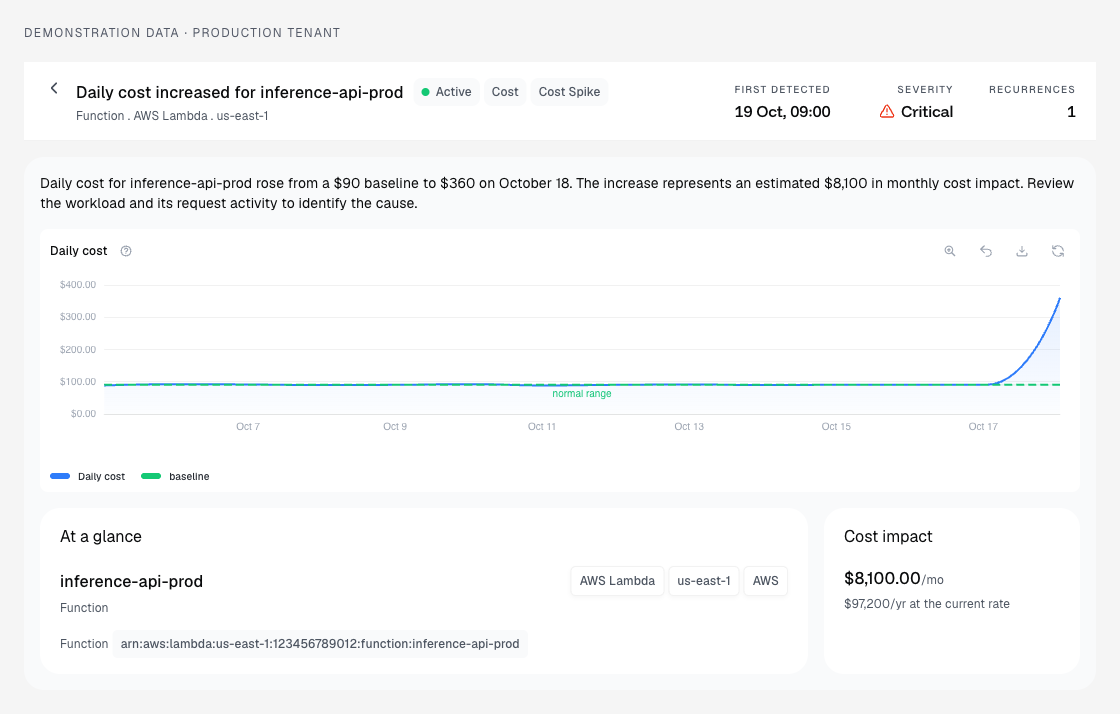
Copy the resource ID from the finding. This example uses the following fictional ARN.
arn:aws:lambda:us-east-1:123456789012:function:inference-api-prod
The increase tells you where to investigate. It does not identify an abusive customer or establish that abuse occurred. For this function, the inference team owns the investigation because it operates the service and can inspect its request logs.
Turn the resource ID into an ownership tag
Using virtual tags, we can assign ownership labels to matching cost data. This does not add a tag to the Lambda function in AWS. Here, you'll assign team=inference when the resource ID matches the function from the finding.
Select the Production tenant and open Settings → Tenants Settings → Virtual tags.
- Select Create new tag and enter
teamas the key name. If the key exists, select Open tag page from its menu and open the Rules tab. - Add a rule using the resource field and the is operator. This field matches
resource_id. - Paste the complete ARN from the finding as the match value.
- Enter
inferenceas the tag value. Keep the rule active and leave its dates unset to apply it without a time limit. - Create the tag or save the changes to the existing key.
Open the tag's rules and select View claims. Check that the rule claims spend for the intended resource. The following sample shows the rule and its billing preview.
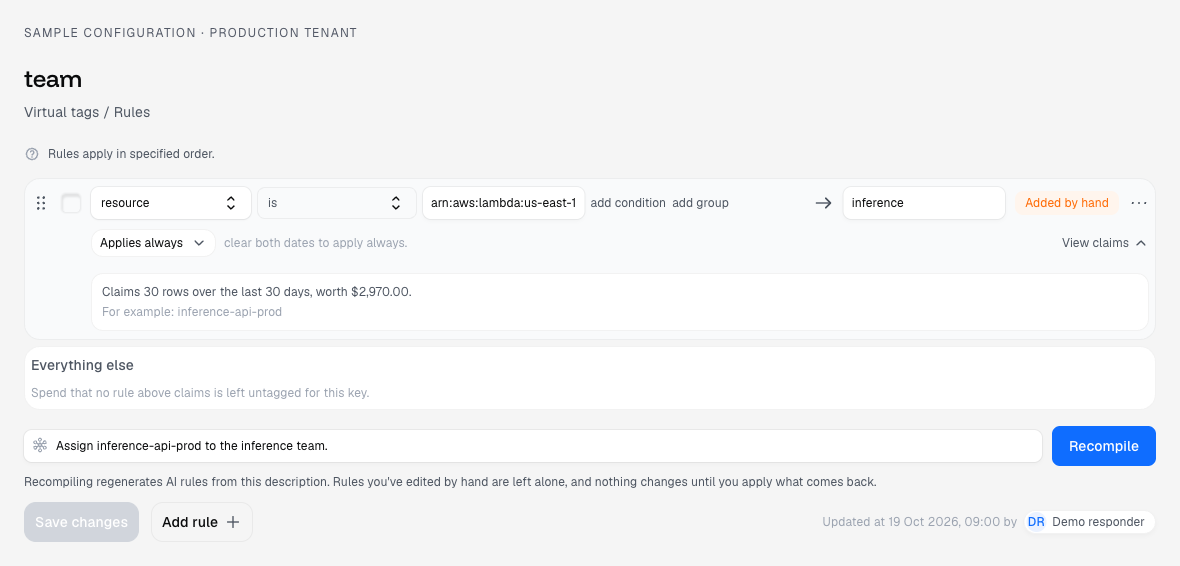
The $2,970 in this preview is the sample resource's recorded spend over the preview window. It differs from the finding's $8,100 estimate of additional monthly cost. View claims checks billing matches. It does not send an alert or test the notification route.
When CostGraph routes an anomaly, it evaluates billing-scope virtual tag rules using the resource fields carried by the alert. In this case, the alert contains the same resource_id as the rule. The rule matches and returns inference for the team key. The Slack route can then select team=inference within Production.
Alert routing can also use provider, service, region, resource name, resource type, and availability zone. Other billing fields and inherited cloud tags are not necessarily available on the alert. Match an attribute present on the finding rather than assuming all of its billing context travels with the notification. The virtual tags guide covers rule creation and ordering.
The diagram below is an easier way to think about how alerts get routed.

Connect the team's Slack channel
In CostGraph, open Settings → Integrations, select the AI agent category, and open Slack. Select Add to Slack, choose your workspace, and complete the installation. The workspace appears under Installed workspaces.
In Slack, add the CostGraph app to #cost-alerts-demo. This gives it a channel where it can post the test message and subsequent matching alerts. The Slack setup guide covers workspace installation.
Choose a channel whose members can see the workload's cost information. Everyone in that channel can read the alert. People who open its CostGraph link still need access to the relevant tenant.
Route matching anomalies to Slack
Open Settings → Alert destinations in CostGraph and select Add destination. Choose Slack and name it Inference cost alerts. Select the connected workspace and #cost-alerts-demo channel.
If the channel is missing, check that the CostGraph app has joined it. If CostGraph asks you to reinstall the app, reconnect it to grant channel access.
Replace the initial All notifications route with the following configuration.
The following sample shows the channel and saved route in the destination editor.
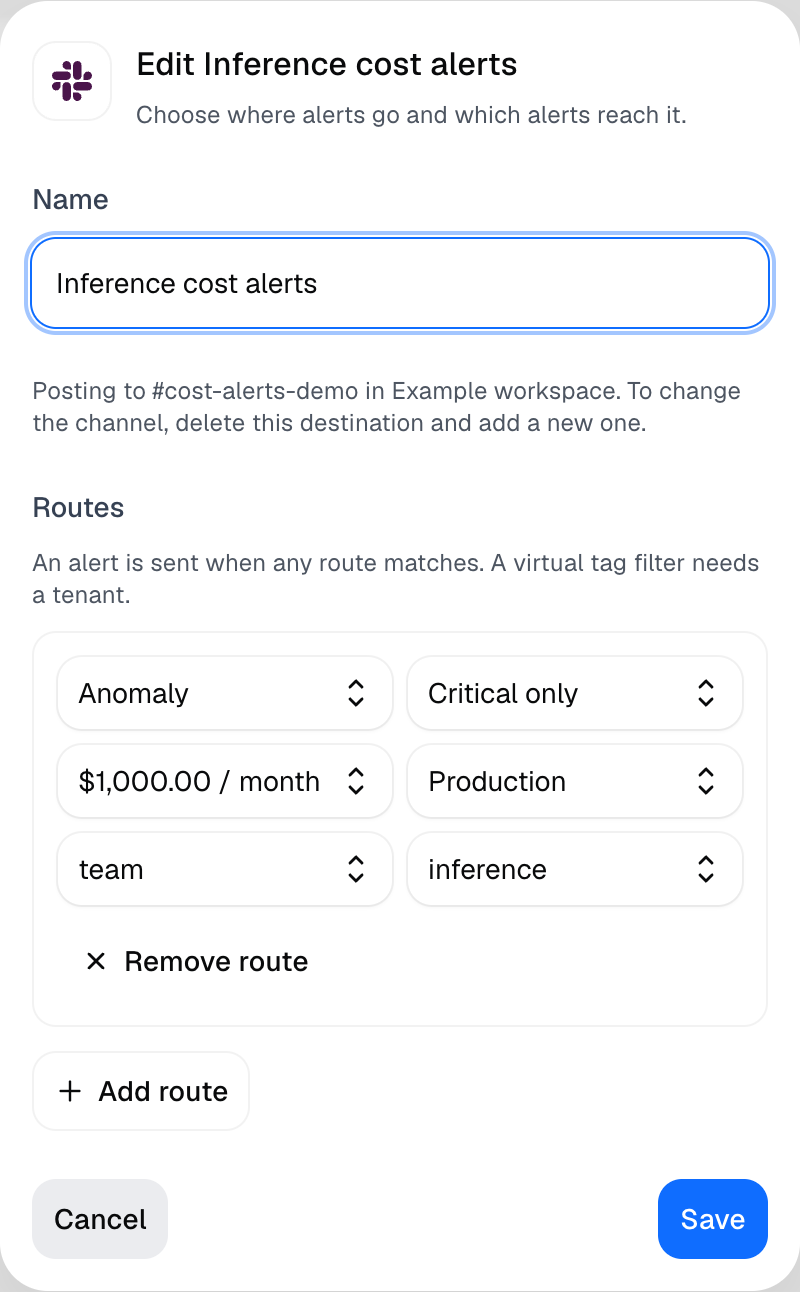
Our sample finding meets each condition. It is a critical anomaly in Production, its $8,100 monthly impact exceeds $1,000, and its resource ID maps to team=inference.
Every condition in this route must match. If you add more routes, matching any one of them is enough to send an alert. Remove an unrestricted All notifications route if you want this destination to receive only the scoped anomalies.
The cost impact is a monthly estimate associated with the anomaly. It is not an account spending cap or a charge that has already accrued. Choose a threshold that justifies interrupting this team.
Only critical anomalies enter the immediate alert path. Warning and info anomalies appear in the weekly email digest, even if you select a lower minimum severity here. Other event types, such as budget thresholds, have their own alert behavior. Events without a cost impact pass the minimum-cost filter, so keep the notification type explicit.
Test the connection
A destination awaiting its first event shows No deliveries yet. The following sample shows where to send a test and inspect deliveries.
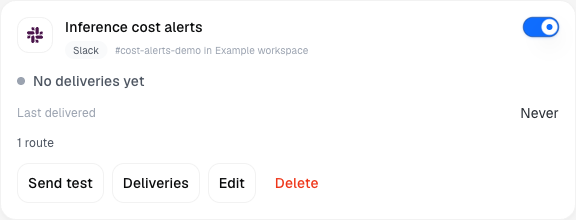
Save the destination and select Send test. Open #cost-alerts-demo and look for a message titled Test alert from CostGraph. It includes an Open in CostGraph button. In CostGraph, open Deliveries to inspect the delivery result.
The following screenshot shows the test message CostGraph delivered to our demo channel.

This test checks whether CostGraph can post to the channel. It bypasses route matching, so it does not prove that your tenant, ownership tag, or cost threshold selects the intended anomaly.
Read the cost anomaly notification
The connection test uses a generic message. A cost anomaly notification uses the finding's title and description, followed by an Open in CostGraph button. The following preview uses the same Slack blocks as CostGraph's sender and the demonstration finding from this walkthrough.
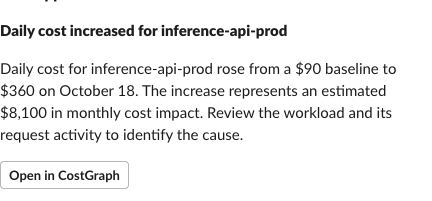
Demonstration anomaly rendered in Slack's Block Kit Builder. This is a message preview, not a captured customer incident.
Here, the description names inference-api-prod and explains the cost increase. The message does not contain a separate resource table or ownership tag badge. The team rule determines which destination receives it. Select Open in CostGraph to see the full resource ID, cost history, and finding details.
Once the demo works, create a destination for the team's response channel and apply the same route. Pause or remove the demo destination to stop duplicate notifications. The alert destinations guide covers the available route filters and delivery controls.
Still unsure how this fits your setup? Book a demo with us, and we'll walk through routing cost alerts to the team that owns the workload.